

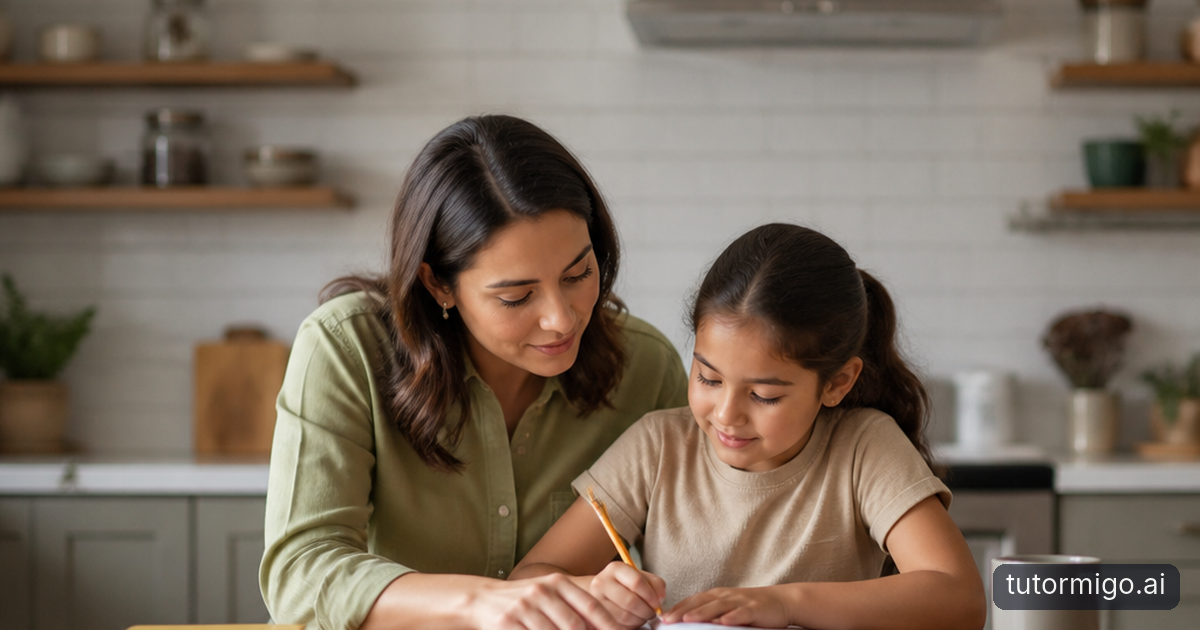
Start With a Calm Online Safety Check

Online classes and homework can make family life easier, but they also place children in spaces where links, chats, accounts, and personal information need careful attention. The goal is not to make your child fearful or watch every click. It is to create a repeatable routine that helps both of you notice risks early and respond without panic.
Begin with a 15-minute check while your child is nearby. List each learning service, video-class platform, school account, messaging tool, and device used for schoolwork. For every account, confirm the child’s display name, profile photo, visibility settings, and connected apps. Remove old accounts and sign out of services your child no longer uses.
Next, check the device itself. Install operating-system and browser updates, enable a screen lock, review which apps can use the camera, microphone, location, contacts, and files, and turn off permissions that are not needed. Make sure the home Wi-Fi password is private and that your child knows not to join unfamiliar public networks for schoolwork unless an adult has checked them.
Family habit: Repeat this check at the start of each school term and whenever a new learning app or device is introduced.
Check Privacy, Account, and Recovery Settings

Privacy settings are easiest to review one category at a time. Set the child’s profile to the most private option available, limit who can search for or contact them, and restrict invitations to classes, groups, or meetings to known people. Review whether recordings, chat histories, assignments, or shared files can be viewed by anyone with a link. If a learning service offers a choice between public and private work, choose private unless there is a clear educational reason to share.
Use a separate learning account where practical, rather than combining schoolwork with a personal social account. Check connected apps and remove access for tools your child does not recognise. Review notification settings so unexpected direct messages or meeting invitations are visible to an adult, not buried among alerts.
Secure the account with a long, unique password. A password manager can help an adult keep track of it, and two-step verification should be enabled when the service supports it. Confirm the recovery email address or phone number belongs to a trusted adult and that nobody else can use it to reset the account.
Look at the service’s privacy explanation together. A safer sharing guide for learning tools can help you discuss what information is necessary, optional, or better kept private.
Teach Children to Spot Unsafe Links and Requests
Children are more likely to make safe choices when they have a simple process to follow. Teach them to pause before opening a link, downloading a file, or answering a message. They should ask: Who sent this? Was I expecting it? What is it asking me to do? If the answer feels unclear, they should not continue until they show an adult.
Use realistic examples. A message might claim that a class recording is ready, ask the child to sign in again, or offer a free game in exchange for a school password. An unsafe request may create urgency, secrecy, or embarrassment: “Reply now,” “Do not tell your parents,” or “Send a photo to prove it is you.” Explain that a familiar name or logo can be copied, and that a message appearing inside a class platform is not automatically trustworthy.
Show your child how to check the full sender address and destination before selecting a link. They should navigate to the learning service using a saved bookmark or the official app instead of signing in through an unexpected message. They should never share passwords, one-time codes, home addresses, school schedules, live location, or private photos in response to a chat.
Practise together without blame. Guidance on spotting social engineering scams with your child can give you a short script for these conversations.
Set Clear Rules for Cameras, Chats, and Information
Write family rules in plain language and keep them near the learning space. For cameras, decide when video is required, when audio is enough, and what background is acceptable. A child should check the room for private documents, family photos, addresses, or other people before turning on video. They should never record a class, screenshot another student, or share a meeting link unless the teacher or school has clearly allowed it.
For chats, set a rule that school communication stays on the approved platform and happens during agreed hours. Children should not move a conversation to a private messaging app because someone requests it. They can mute, block, or leave a chat that becomes uncomfortable, and they should tell an adult even if they responded once or made a mistake.
For personal information, explain the difference between ordinary schoolwork and sensitive details. A first name may be enough for a class profile; a full name, address, phone number, password, medical information, financial details, or daily routine should not be posted casually. Teach children that another person’s information deserves the same protection.
Use a simple rule: If a request involves secrecy, private contact, money, intimate images, or a password, stop and tell a trusted adult.
Respond Quickly When Something Feels Unsafe
Your first response should be calm and practical. Thank your child for telling you, even if they clicked a link, shared something, or ignored an earlier rule. Say, “You did the right thing by telling me.” Avoid starting with punishment; fear can make children hide future problems. Ask what happened, who was involved, what was shared, and whether the person can still contact them.
Then contain the problem. Stop replying, leave the meeting or chat, disconnect from the network if a device may be compromised, and preserve evidence such as messages, usernames, dates, and screenshots. Do not forward harmful images or private content. Change the affected password from a trusted device, sign out other sessions, enable two-step verification, and run available security updates. If personal information or payment details were exposed, contact the relevant school, service, bank, or account provider promptly.
Report the account, message, meeting, or behaviour through the platform and tell the school or tutor when the incident involves learning. If there are threats, sexual requests, blackmail, stalking, or immediate danger, contact local emergency or child-protection services. Keep checking in with your child afterward. A short follow-up conversation can restore confidence and identify whether settings or family rules need to change.
Make Safety a Repeatable Learning Habit
A safety check works best when it becomes ordinary rather than a one-time reaction. Once a week, ask your child to show you the learning apps they used, any new class groups, and anything that felt confusing. Keep the conversation curious: “What did you notice?” is more useful than “Why did you do that?” Once a month, review account access, privacy permissions, saved devices, and recovery details together.
Keep a short family plan where everyone can find it: pause, do not reply, save evidence, tell an adult, secure the account, and report the issue. Practise the plan with harmless examples, such as a surprise file from a classmate or a request to move a lesson chat elsewhere. Children should know at least two trusted adults they can approach if the first person is unavailable.
Also agree on device boundaries. Decide where learning devices are charged, when notifications are muted, who may use the device, and how updates are installed. These practical details reduce rushed decisions and make it easier for an adult to help.
After completing your home check, you may want a clearer way to stay involved in learning routines. TutorMigo.ai ’s Parent Dashboard offers parent visibility into child progress, learning controls, and co-learning features, which can support regular, open check-ins alongside your family safety rules.
Frequently asked questions
Use only the information the school or learning service genuinely requires. A first name or approved class display name may be enough, and a personal photo is not always necessary. Check the service’s visibility settings and ask the teacher or school what is expected.
Tell the child not to engage, share information, or accept a private message. They should alert the teacher or adult immediately, leave if directed, and preserve useful details such as the username or meeting time. The adult should report the incident through the school and platform.
The right approach depends on the child’s age, maturity, school rules, and the level of risk. Explain what supervision will involve, focus on safety rather than secret surveillance, and increase support when there are threats, grooming attempts, bullying, or repeated unsafe contact.
Stay calm, stop further contact, and change the password from a trusted device. Sign out other sessions, enable two-step verification, update the device, and report the message or account. Tell the school or service if learning access or personal information may be affected.
Related reading
Enjoyed this read?
Like, share, or comment below.


Comments
0Sign in required · respectful discussion · replies supported
Loading comments…