


Not Sure How Your Child’s Studying Is Going? Start With a Shared Check-In

You know your child uses TutorMigo.ai, but you’re not sure what’s improving or where they need help. Start with the Parent Dashboard at /parent, then discuss the progress information available there together. It supports parent visibility, but access to your child’s messages is not confirmed by the supplied feature information.
That uncertainty can make it tempting to ask, “Did you study?” and leave it there. Unfortunately, a yes-or-no answer tells you little about whether your child understood something, needed repeated help, or still feels stuck. A shared check-in gives you a better starting point: “Can we look at what’s available and talk about how studying felt this week?”
Make the purpose clear before you open anything. You’re trying to understand what support would help, not catch your child out. They may be comfortable using an AI Tutor while still finding it difficult to explain a confusing topic to you. Give them room to describe the experience in their own words.
Keep the first conversation small. Choose one recent study topic and ask what became clearer and what still feels difficult. You don’t need a complete account of every study session to agree on one useful next step.
Where to Review Your Child’s Progress: The Parent Dashboard at /parent

The Parent Dashboard at /parent is the TutorMigo.ai area intended for parent visibility into child progress. Its stated scope also includes learning controls and co-learning features. That makes it the appropriate place to begin, rather than assuming your child’s tutoring workspace and your parent view contain the same information.
Start by checking what is actually available in your parent view. The supplied feature description does not specify individual dashboard fields, reporting periods, or detailed measurements, so this guide cannot promise a particular chart, score, activity count, or topic breakdown. Read any labels and explanations shown before deciding what the information means.
For example, you might sit down expecting a detailed account of the week and find that the available view answers only part of your question. Instead of filling the gaps yourself, ask your child to explain the recent learning they want you to understand. Their account adds context; it does not need to match an imagined dashboard report.
If you cannot access the parent area or cannot identify what a displayed item refers to, seek clarification through TutorMigo.ai’s available help or support options. Avoid guessing about account setup or permissions. Establishing what you can actually review is more useful than building a check-in around information you assume should be there.
TutorMigo Benefits for Parents: Making Sense of Available Progress Information
One of the relevant TutorMigo benefits for parents is having a designated place to begin understanding learning progress. The value comes from connecting the information available there with your child’s explanation. A dashboard can support a conversation, but it cannot, by itself, tell you how confident, frustrated, or independent your child felt.
Keep three questions separate: What does the parent view explicitly show? What does your child say happened? What can they now explain or try? Those are different kinds of evidence. Together, they can help you choose support without treating one observation as a complete picture of learning.
Suppose your child says a topic is getting easier. Ask them to explain one idea without looking at their notes. If they can describe the reasoning but hesitate over a detail, the next step may be focused review rather than starting everything again. If they still cannot explain the idea, ask where the confusion begins instead of assuming they did not try.
TutorMigo.ai offers spaced-repetition flashcards, but their availability does not establish that parents can inspect a child’s decks or review history through the dashboard. You can still discuss whether scheduled review would help. This guide to spaced-repetition flashcards for parents offers relevant background for that conversation.
Can You View Your Child’s Messages? Verify Access Before Assuming
Parent access to your child’s messages is not confirmed by the supplied feature information. The Parent Dashboard description establishes progress visibility, learning controls, and co-learning features. It does not establish access to tutoring conversations, message transcripts, or the child’s complete session history. Progress visibility and conversation access are not interchangeable.
The AI Tutor Workspace includes personalized tutoring chat and session history. That describes the tutoring workspace; it does not prove that those conversations are visible from a parent account. Before promising your child that you can—or cannot—read messages, confirm the current permissions through the product’s available explanations or support.
The name “Study Squad” is also unverified in the supplied feature information. It should not be treated here as an available feature, a confirmed parent area, or evidence of message-sharing permissions. If you encounter that name elsewhere, verify what it currently refers to before relying on it.
Meanwhile, you can keep the conversation useful without requesting a full transcript. Try, “Would you show me an example you’re comfortable discussing?” Your child might choose to explain a problem, describe feedback, or talk through a remaining question. That voluntary explanation helps you understand their experience without making unsupported claims about what the platform lets you inspect.
A Parent–Child Check-In Example: Turn Progress Information Into Practical Support
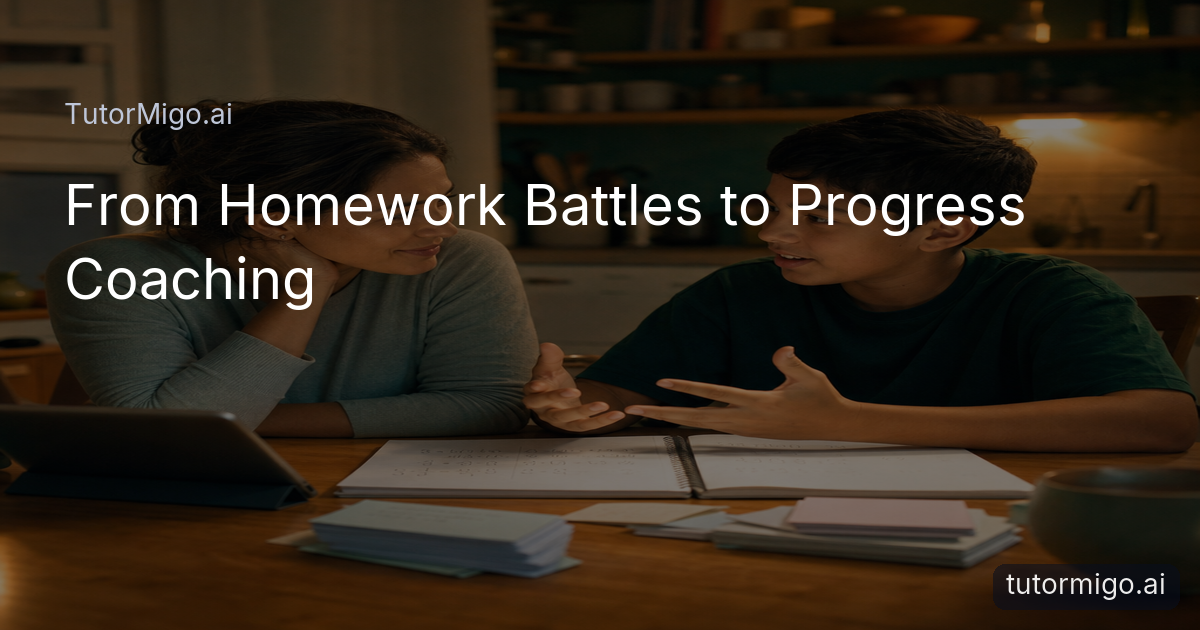
Imagine your child, Sam, has been using TutorMigo.ai to work on a difficult topic. You’ve heard “It’s fine” several times, but you still don’t know whether studying is helping. You agree to spend ten minutes together: first reviewing the available Parent Dashboard information, then discussing one recent learning experience.
You begin with what the parent view actually shows, using its own labels rather than adding assumptions. Then you ask, “What part of your studying does this help explain, and what would you add?” Sam says the explanations make sense during tutoring, but starting a similar problem alone still feels difficult. That distinction gives you something practical to discuss.
Instead of concluding that Sam needs more screen time or closer monitoring, you ask for a short demonstration. Sam chooses a problem and explains the first step. When they hesitate, you ask, “What would help you decide where to start?” You’re identifying a support need, not grading their performance.
Together, you agree that Sam will practise explaining the opening step before seeking more help from the AI Tutor. At the next check-in, you’ll ask whether starting independently feels easier. You can also look for signs of learning progress before grades improve. The outcome is a specific plan—not an assumption about messages, motivation, or effort.
Your Next Steps: Review What’s Available and Agree on Support With Your Child
Begin with a short, agreed check-in rather than an open-ended inspection. Tell your child that you want to understand what’s helping and where they need support. Open the Parent Dashboard at /parent together where practical, and review only the information available to you. Read the accompanying labels before interpreting anything.
Next, ask your child to supply the learning context. “What feels easier now?” and “Where do you still need help?” usually lead to a more useful discussion than “Why haven’t you improved?” Invite one concrete example, such as explaining an idea or describing where they become stuck. Keep their explanation separate from what the dashboard explicitly confirms.
Then agree on one manageable action. Your child might choose a focused review, another attempt at a difficult task, or a follow-up conversation after trying it independently. Decide when you’ll check back and what you’ll discuss. The aim is to see whether the support helped, not simply whether more studying happened.
Finally, verify any permissions you remain unsure about before relying on them. Neither message visibility nor the unverified feature name discussed above should become a foundation for your plan. You can stay informed by combining available progress information, your child’s perspective, and a clear agreement about support—without assuming access to private conversations.
Frequently asked questions
Start with the Parent Dashboard at /parent. It is the designated area for parent visibility into child progress, learning controls, and co-learning features. Check your available view rather than assuming specific reports are included.
Use what the dashboard explicitly shows as a starting point for discussing learning. Ask your child what feels clearer, what remains difficult, and what support would help. The supplied feature information does not specify individual dashboard metrics.
Message access is not confirmed by the supplied feature information. Session history in the AI Tutor Workspace does not establish parent access. Verify current permissions through available product guidance or support.
The supplied feature information does not verify that name or its availability. Do not rely on it as evidence of parent access, shared conversations, or other permissions.
Related reading
Enjoyed this read?
Like, share, or comment below.


Comments
0Sign in required · respectful discussion · replies supported
Loading comments…